
Your Connection Is Not Private: What It Means for Your Website and How to Fix It
What the 'Your connection is not private' warning means for a business website, how to tell a visitor-side error from a site fault, how to check your SSL certificate in cPanel, and why Chrome's HTTPS default and shorter certificate lifetimes make it worth checking now.

zabil

A full-page warning that says “Your connection is not private” is a poor first impression, and it can appear on a website that is otherwise working perfectly. This guide explains what the warning means, how to tell whether the fault is on your site or on the visitor’s device, and what you can check yourself. It draws on Chrome’s help pages, Google’s documentation, MDN, WordPress’s handbook and cPanel’s documentation, as we read them on 17 October 2026.
What the warning means
Chrome’s help page says that if you get a full-page error message saying “Your connection is not private,” then “there’s a problem with the site, the network, or your device.” In plain terms, the browser tried to set up an encrypted HTTPS connection and could not trust what the site offered, usually its certificate.
A milder case is the “Not secure” label in the address bar, where the site does not use a private connection at all. For that one, Chrome’s help says “the site owner must secure the site and your data with HTTPS.” If you own the site, that means you.
A red “Dangerous” screen is a different problem. Chrome says that means the site has been flagged as unsafe by Safe Browsing. If you see that on your own site, start with what to do first when a WordPress site is hacked.
Step 1: Rule out the visitor’s device
Chrome lists several causes that sit with the visitor, not your website:
- Public Wi-Fi sign-in pages. At cafes and airports the network may need a sign-in first. Chrome suggests opening a page that starts with http:// to reach it.
- Antivirus software. Some programs offer HTTPS scanning, which can trigger the error. Chrome suggests turning it off temporarily to test.
- A wrong clock. The date error “NET::ERR_CERT_DATE_INVALID” can appear “if your computer or mobile device’s date and time are inaccurate.”
Chrome also warns that installing a certificate by hand is “usually a security risk,” so never tell a customer to do that. Its page ends with: “If you still get an error, contact the website owner.”
Our own quick test: open your site on mobile data instead of your office Wi-Fi, in a second browser and on a second device. If every combination shows the warning, treat it as a site problem. Chrome’s page puts the date error down to the visitor’s clock, but a certificate also has an expiry date of its own, which is the next thing to check.
Step 2: Check the certificate in cPanel
If your hosting uses cPanel, the SSL/TLS Status page (Security, then SSL/TLS Status) is the quickest check. cPanel’s documentation says you can use it to “monitor the SSL certificate status of your domains” and to “identify unsecured or expiring domains.” It also notes that your hosting provider can switch this page off, so if it is missing, ask your host.
- Filter by status. The filters include Expired, Expiring Soon, Unsecured and Has AutoSSL Problems.
- Read the Certificate Status column. If AutoSSL logged an error for a domain, cPanel shows it there.
- Check DNS. cPanel’s own example of an AutoSSL problem is a domain that “does not resolve to an IPv4 address on the internet.” After a move between hosts, make sure the domain points to the right server.
- Check every name. The page lists main domains, subdomains and the www version separately. Chrome groups ERR_CERT_COMMON_NAME_INVALID with the “not private” errors, which in plain terms points at a certificate that does not cover the name the visitor typed. That is our reading, so check both example.com and www.example.com.
- Check CAA records. cPanel says CAA records in your DNS zone “restrict which Certificate Authorities (CA) may issue certificates for that domain.” If conflicting records exist, cPanel says to remove them or add one for the authority you want.
If you see Expired, or an AutoSSL error you cannot clear, send your host a screenshot and the domain name.
Step 3: Certificate fine, but no padlock
A valid certificate does not guarantee every page looks secure. MDN defines mixed content as “securely loaded web pages that use resources to be fetched via HTTP or another insecure protocol.” MDN adds that browsers upgrade insecure image, video and audio requests to HTTPS and block insecure requests for other resource types. After a switch to HTTPS, that can show up as missing images, a broken layout or features that fail quietly.
On WordPress, open Settings, then General. WordPress’s handbook says the “WordPress Address (URL)” and “Site Address (URL)” fields control where WordPress is located, and: “Both settings should include the https:// part and should not have a slash / at the end.” Old http:// addresses can also sit inside posts, widgets and theme settings, so a database search-and-replace is often needed. Take a backup first, and ask your developer if you are not sure.
Then check that plain http:// requests redirect to https://. Google’s HTTPS guide says “Ultimately you should redirect HTTP requests to HTTPS,” though it places that late in a migration. If you are moving or rebuilding the site, see how to redesign a website without losing your SEO.
On Google’s side, the page experience documentation (last updated 22 September 2026) lists “Are your pages served in a secure fashion?” among its self-assessment questions and says “There is no single signal” for page experience. Search Console has an HTTPS report to “Check if you’re serving secure HTTPS pages and what to fix, if you’re not.” Our Search Console guide shows where to start.
Why this matters more this autumn
On 28 October 2025, Google’s Chrome Security team wrote that with Chrome 154 in October 2026 it would turn on the “Always Use Secure Connections” setting by default, in a variant for public sites only. In practice, Chrome asks for the visitor’s permission before the first visit to a public site that does not use HTTPS. Users can still switch the setting off. We have not confirmed how far the rollout has reached, so treat this as a reason to check now, not a deadline.
Certificates are also getting shorter. Let’s Encrypt, a nonprofit authority that gives certificates away free (some hosting providers build it into their plans), announced on 7 October 2026 that from 10 February 2027 its certificates default to 64-day lifetimes. It expects the last 90-day certificate to expire on 11 May 2027. Its advice for anyone running their own renewals is to renew at roughly two thirds of the lifetime rather than a fixed number of days, and to “add alerting for renewal failures.”
For a business on shared hosting this is mostly your host’s job, but you can ask two questions: are renewals automatic, and how would we be told if one failed? We could not find a statement from cPanel about how AutoSSL handles the change, so ask your host directly.
Keeping it from happening again
- Know who controls your domain, hosting and DNS (our domain, hosting and login checklist helps).
- Open SSL/TLS Status once a month and look for Expiring Soon.
- After any host move or redesign, test both the www and non-www addresses on a phone.
- Make sure alert emails go to a mailbox someone actually reads (see why contact form emails go missing).
If the warning is live on your site right now and you cannot find the cause, tell us about your business and see our systems and technology services.
Related services
Related work
Where this has been applied.
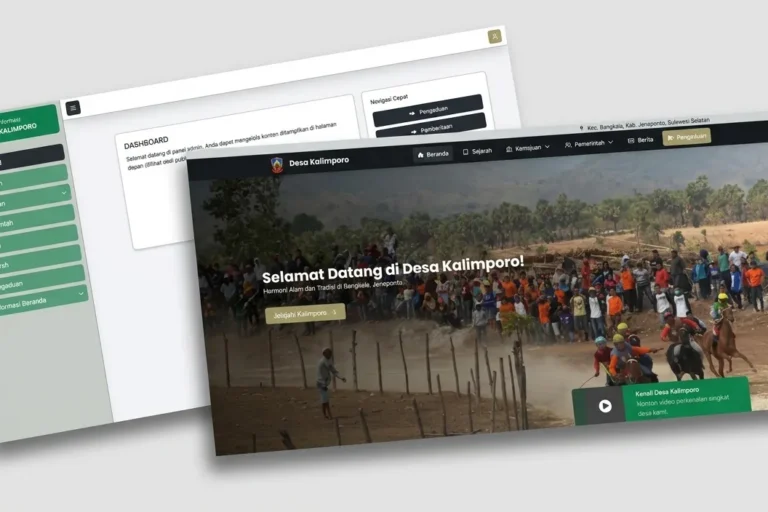
Local & Growing Businesses
Desa Kalimporo
Desa Kalimporo
A village profile platform presenting governance structure, population data, local potential and village programmes to a wider audience.
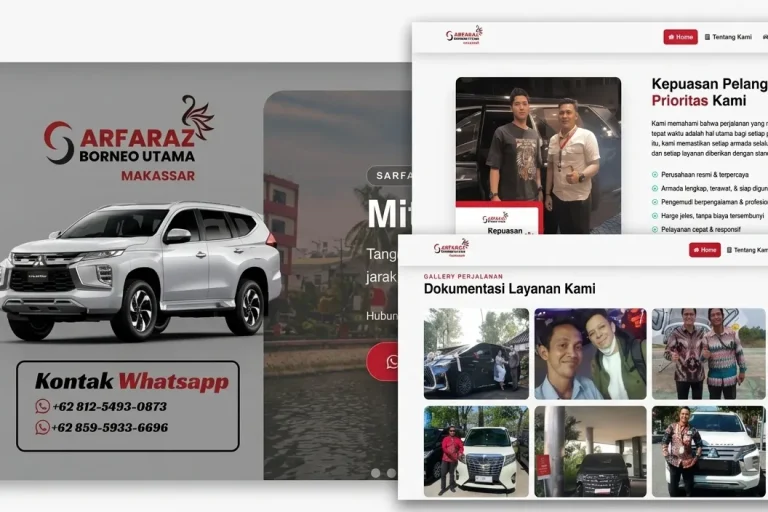
Tourism & Hospitality
Sarfaraz Rent Car Makassar
Sarfaraz Rental Mobil Makassar
A car rental company website presenting the fleet, rates and rental terms, with contact details customers can reach easily from any device.
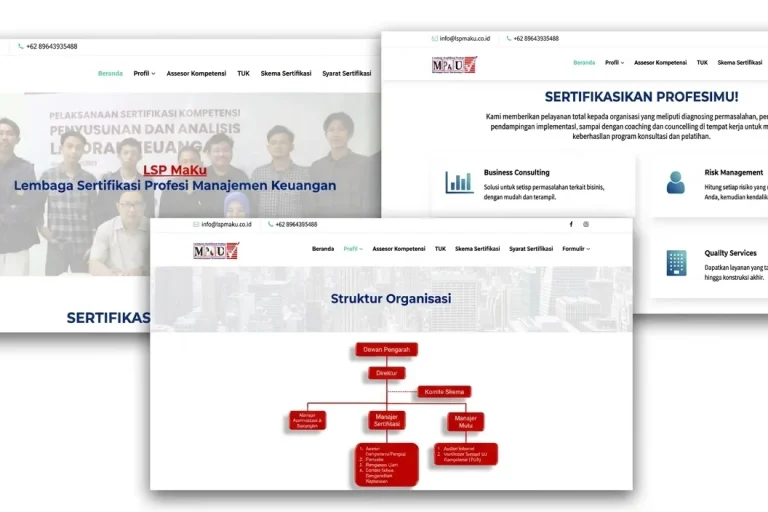
Professional Services
LSP MaKu
LSP MaKu
A professional certification body website covering certification schemes, schedules and participant guidance.
Keep reading
Related articles.

Web Development
Google Tag Manager for Small Business: Do You Need It, and How to Use It Safely
What Google Tag Manager does, whether a small business needs it or can use the Google tag alone, how to install and test it,…

Web Development
Booking System for Your Business: Off-the-Shelf, Plugin or Custom-Built?
Should your business use a SaaS booking tool, a WordPress plugin or a custom build? How to compare them, the one question that exposes…

Web Development
Payment Gateway in Indonesia: How QRIS, Virtual Accounts and E-Wallets Fit Together
QRIS, virtual accounts and e-wallets compared, what changed in QRIS fees on 1 October 2026, why a payment is a state machine and not…