
WordPress Security for Small Businesses: A Plain-English Checklist
A plain-English WordPress security checklist for business owners: updates, plugins, passwords, backups, and what to ask your developer and host.

zabil
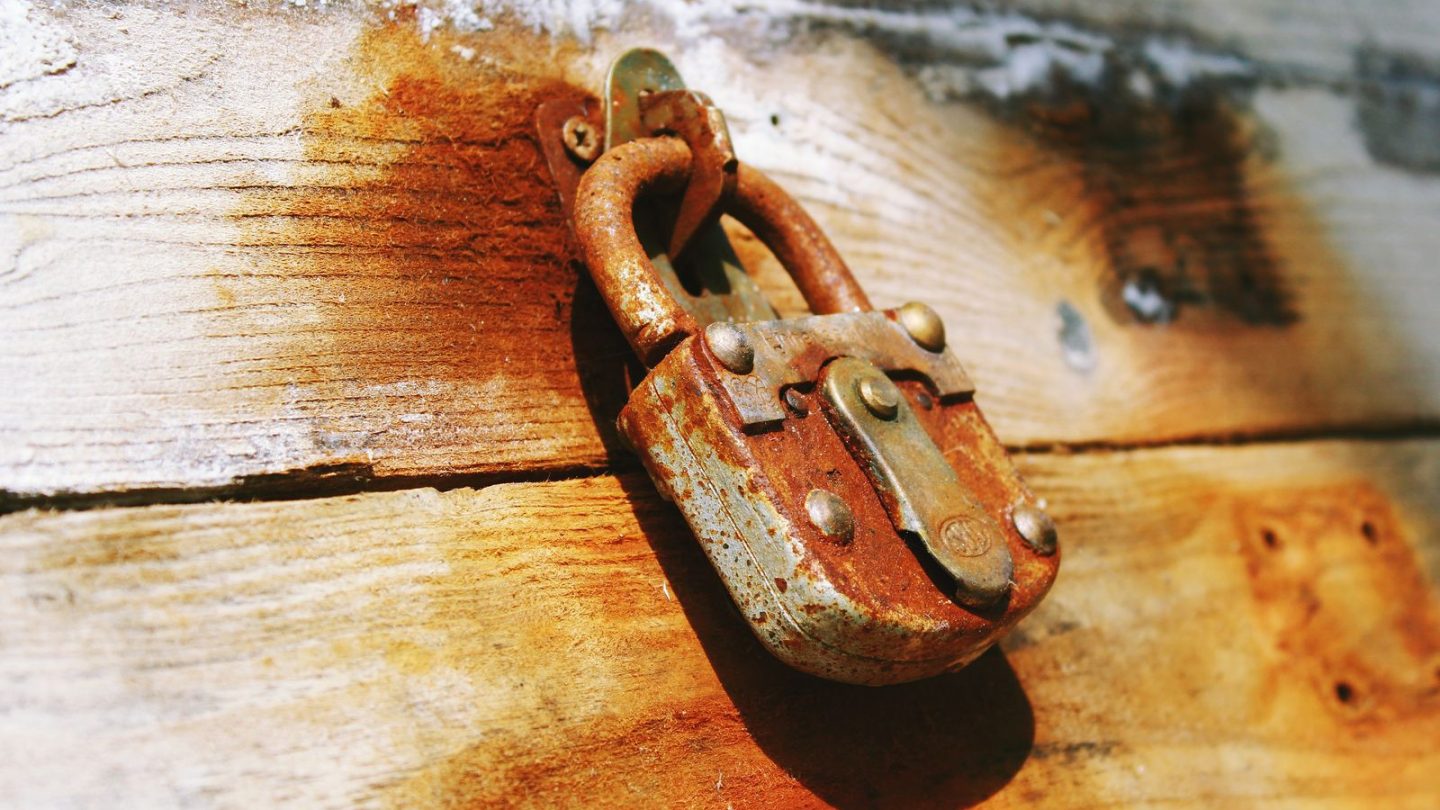
Two themes run through the official WordPress security guidance: keep the software up to date, and protect who can log in. Both are preventable problems, and neither needs deep technical knowledge to address.
This is a plain-English WordPress security checklist for business owners. It draws on the official Hardening WordPress guide in the WordPress Advanced Administration Handbook, and it separates what you can do yourself from what to ask your developer or host to do. No checklist makes a site unhackable, so it also covers what to do so a bad day is an inconvenience and not a disaster.
Why updates come first
WordPress, your theme and your plugins are all software, and software gets security fixes. The WordPress handbook says to always keep up to date with the latest version of WordPress, and that older versions are not maintained with security updates. It also explains why speed matters: when a vulnerability is found and a fixed version is released, the information needed to exploit it is almost certainly public, which makes old versions more open to attack.
What to do:
- Turn on automatic updates where you can. WordPress has had automatic updates since version 3.7.
- Check the Updates screen in your dashboard at least monthly if you do not use automatic updates for everything.
- Take a backup before a big update, then open your homepage, contact form and WhatsApp button to check they still work.
If updates keep breaking things, that is a sign the site needs attention from a developer, not a reason to stop updating.
Remove what you do not use
The handbook is direct about plugins: keep them updated, and if you are not using one, delete it. Deactivating is not the same as deleting. An inactive plugin still sits on the server.
It also advises against getting plugins and themes from untrusted sources and suggests sticking to the WordPress.org directory or well-known companies. That rules out “free” copies of premium themes and plugins from random websites.
A quick audit:
- Open Plugins and write down what is installed.
- Delete anything you do not recognise or no longer use. Ask your developer first if you are not sure what it does.
- Do the same for old themes you are not using.
Fewer plugins also means fewer things to keep updated. Neglected maintenance shows up in speed as well as security, which we cover in is WordPress slow.
Passwords and who has access
The handbook points out that someone who gains access to an administrator account can install malicious scripts that may compromise the whole server. It recommends a strong password, one that is not short and mixes letters and numbers, and enabling two-step authentication as an extra layer.
Practical steps:
- Use a password manager so every account has its own long password.
- Turn on two-step authentication for your WordPress admin accounts, your hosting account and your domain account.
- Give each person their own login. Do not share one admin account between a team, a freelancer and an agency.
- Remove accounts when someone leaves, and give people only the access they need.
- If a developer needs to upload files, ask for SFTP, which encrypts your password and data in transit. Plain FTP does not.
Backups: your real safety net
The handbook says to back up regularly and to have a plan to recover your site if something goes wrong. It makes two points business owners often miss. First, a sound backup strategy keeps regular snapshots of the whole installation, files and database, in a trusted location. Second, if a site is compromised but nobody notices for a while, older backups from before the compromise are what let you rebuild. It also advises having backups you have tested are valid and can be easily restored.
Ask your host or developer these questions and get answers in writing:
- How often are backups taken, and how long are they kept?
- Are copies stored somewhere other than the same server as the website?
- When did anyone last test a restore?
- Who do I contact, and how long might a restore take?
A backup that has never been restored is a hope, not a plan.
Things to ask your developer to do
These are worth requesting but are not for beginners to attempt:
- Disable file editing in the dashboard. By default, WordPress lets administrators edit theme and plugin files from the dashboard. The handbook notes this is often the first tool an attacker uses after logging in, and there is a setting to turn it off.
- Lock down file permissions. The handbook recommends locking permissions down as much as possible.
- Add a firewall. The handbook describes both firewall plugins and server-level firewalls that filter requests before WordPress processes them.
Your host is part of the picture
The handbook says that while hosts offer security to a certain level, you need to understand where their responsibility ends and yours begins. Ask what your hosting plan actually includes: backups, malware scanning, a firewall, and how quickly they respond if something goes wrong. Do not assume any of these are included until you have seen it in writing.
A fifteen-minute monthly routine
- Run any pending updates for WordPress, plugins and themes.
- Confirm a recent backup exists and note its date.
- Review your list of administrator accounts.
- Delete any plugin or theme you do not use.
- Test your contact form and WhatsApp button.
When a rebuild makes more sense
If your site uses a theme or plugins that are no longer updated, or nobody can say what is installed or who has access, patching may cost more than starting clean. We compare the options in slow WordPress site: fix it or rebuild it and set out what to expect from a website rebuild.
Need a second pair of eyes?
You do not need to do all of this alone. If you are not sure what is installed on your site, who can log in, or whether your backups would actually restore, tell us about your business. We build and rebuild websites through our systems and technology service and can start by looking at what you have today.
Related services
Related work
Where this has been applied.
Professional Services
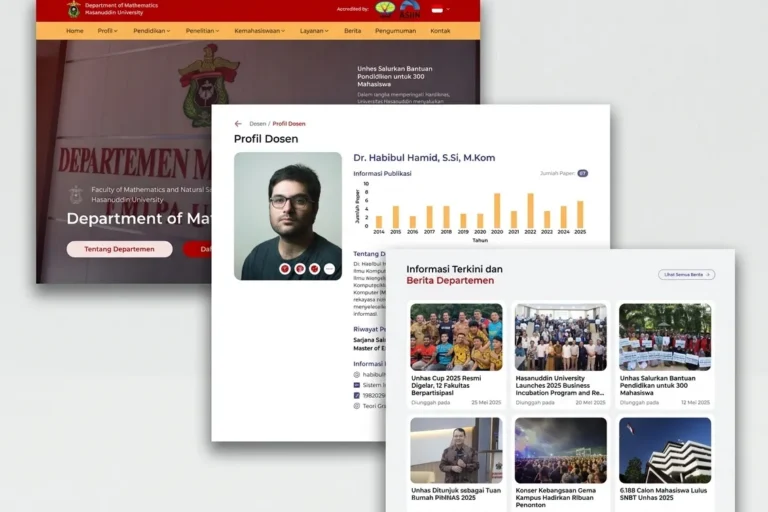
Departemen MIPA UNHAS
Universitas Hasanuddin
An official departmental website presenting academic information, news and activities, built so staff can maintain it without technical help.
Professional Services
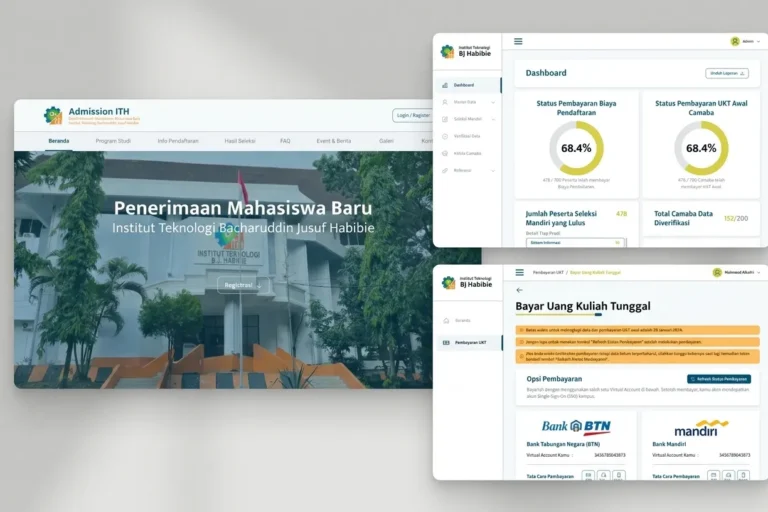
Admission ITH
Institut Teknologi BJ Habibie
A student admissions platform handling the full registration process online, from application through document upload to initial payment.
Local & Growing Businesses
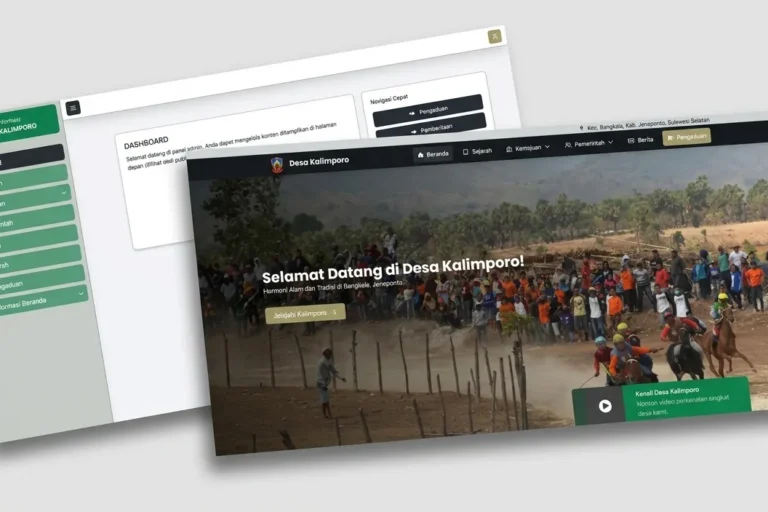
Desa Kalimporo
Desa Kalimporo
A village profile platform presenting governance structure, population data, local potential and village programmes to a wider audience.
Keep reading
Related articles.
Web Development
Who Owns Your Website? A Domain, Hosting and Login Checklist
Your domain, hosting, admin logins and Google accounts can each belong to a different person. A practical checklist so you know who holds the…

Web Development
Does Your Bali Business Need a Multilingual Website?
Should a Bali business website speak more than one language? How to decide from your own enquiries, and how to set it up so…
Web Development
Slow WordPress Site: Should You Fix It or Rebuild It?
Most slow WordPress sites can be fixed without a rebuild, but some cannot. How to decide, before you spend anything.