
WordPress Site Hacked? What to Do First and How to Get Google to Trust It Again
A hacked site needs the right steps in the right order. What to do first, how to clean it and how to ask Google to lift the warning, based on Google's guidance.

zabil

It often starts with a customer saying Google shows a warning next to your business, or your homepage redirecting to a casino site, or your host emailing to say the account has been suspended. Your first instinct is to start deleting things. Please do not: the first steps are about containing the damage, not cleaning it.
This guide follows Google’s own recovery material: its Search Console help on security issues and the “Help, I think I’ve been hacked” series on web.dev, which Search Console help still points site owners to. Some of those web.dev pages date from 2015, so we kept to advice that still holds, and we flag where a step is our own WordPress translation. It is not a substitute for a professional when the site holds customer data.
How to tell if your site was hacked
Google defines hacked content as “any content placed on your site without your permission because of security vulnerabilities in your site.” The signs it describes include:
- Search results showing labels such as “This site may be hacked” or “This site may harm your computer”, or a browser warning page before your site opens.
- An email from Search Console, if you are a verified owner, or an alert in its Security Issues report.
- Strange pages that you did not create, which show up when you search
site:yourdomain.comin Google.
Hacks are often hidden from the owner. Google warns that hackers use cloaking, showing different content to visitors and to search engines, so you might see a normal page while Google sees spam. It advises not opening infected pages in a browser, and using the URL Inspection tool or cURL to see what Google sees. Google also says to treat the Security Issues report as “the source of truth” rather than trying to reproduce the warning yourself.
Step 1: Get help and take the site offline
Google’s guide starts by building a support team. Contact your host and tell them the site has been compromised: they can check whether other customers were affected and may help recover it.
Then take the site offline so visitors are not exposed. Google suggests pointing the site to a static page that returns a 503 status. It adds two warnings:
- A 4xx or 5xx response from the compromised site “isn’t enough to protect your users”, because harmful content can still be returned. The 503 should come from outside the compromised site, and your host can often set that up.
- A
robots.txtdisallow is also not enough, because it only blocks search engine crawlers, not people.
Worried about rankings? Google says it is “unlikely that taking your site offline intermittently or temporarily during the recovery process will affect future ranking of your site in search results.”
Step 2: Lock the doors
While the site is offline, review who can get in. Google’s advice is to check your list of user accounts for any the hacker created, note their names for later investigation, delete them, and change the passwords for every account related to the site: FTP, database, system administrators and CMS logins.
In WordPress terms (our translation, not Google’s), that means opening the Users screen to look for administrators you do not recognise, then changing passwords for every real user, your hosting panel and your site email. If you are not sure who holds the logins, our domain, hosting and login checklist is a good place to start. Expect to change passwords again at the end, because Google recommends a final change once the cleanup is complete.
Step 3: Find how they got in
If you clean the site but never find the cause, the hacker can return. Google lists the usual routes:
- a virus on an administrator’s computer
- weak or reused passwords
- out-of-date software, including the CMS and its plugins
- permissive coding, such as open redirects and SQL injection
It adds a caution: “there may be multiple, independent hacks in place”, so keep looking even after you find one. On a WordPress site, outdated plugins and reused passwords are the first places to look, which is why our WordPress security checklist starts with updates and access.
Step 4: Clean the site
How you clean depends on your backups, and Google describes three situations:
- A clean, current backup: restore it, then update all software, remove what you do not use, fix the vulnerability and change passwords again. First, check that the backup was created before the hack.
- A clean but outdated backup: keep a copy of the infected site, labelled as infected, restore the backup, update everything, then carefully bring across only the new content you know is clean.
- No backup: make two backups of the infected site, label them, and clean a copy, not the live server.
Google also says to do “a clean installation, not just an upgrade”, because, in its words, “Upgrades can leave files from a previous version.” In WordPress terms (again our translation), that means reinstalling the core files and plugins from official sources and restoring only content you trust. This is where most owners should call a professional. Google says fixing a site yourself “requires the ability to read and understand code”, and suggests “a qualified professional” if you do not feel equipped.
Step 5: Ask Google to review the site
Once the site is clean, the cause is fixed and the site is back online, open the Security Issues report and select Request Review. Google is clear on scope: “Fix the issue throughout your site. Fixing the issue on just some pages will not earn you a partial return to search results.” In your request, describe your fixes: Google says a good request explains the issue, describes the steps you took and documents the outcome.
Be patient, and do not resubmit while a review is pending. Search Console help says most reviews “can take several days or weeks.” The older web.dev guide gives more detail: malware reviews take a few days, reviews for sites hacked with spam can take up to several weeks, and if Google finds the site clean, it says warnings from browsers and search results will be removed within 72 hours. Do not request a review before the problem is truly fixed, because it “will only prolong the period of time that your site is flagged as dangerous.”
Pages the hacker created from scratch should be removed so they return a 404. Google says they will then fall out of its index naturally with time.
If visitors’ data may have been exposed
Google’s guide notes that if confidential user information was obtained from your site, you “may want to consider any business, regulatory, or legal responsibilities” before you start deleting files. For businesses in Indonesia, our guide to the PDP Law and your website explains what is changing in January 2027. It is general information, not legal advice.
Make sure it does not happen again
Google’s long-term list is short: regular automated backups, keeping software up to date, understanding the security practices of the plugins and themes you install, strong passwords, and secure devices for everyone who logs in. Test that a restore actually works before you need it.
If your site has been hacked and you would like a second pair of eyes on the cleanup, or a proper maintenance routine afterwards, that is part of our systems and technology service. You can tell us about your business to start.
Related services
Related work
Where this has been applied.
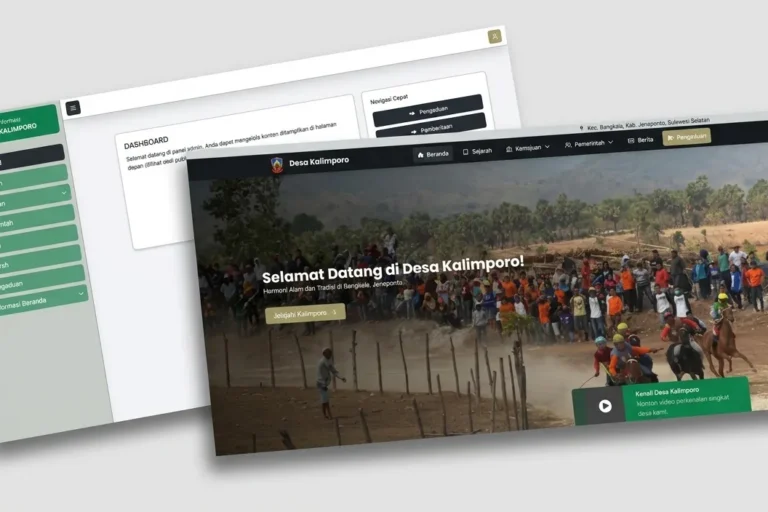
Local & Growing Businesses
Desa Kalimporo
Desa Kalimporo
A village profile platform presenting governance structure, population data, local potential and village programmes to a wider audience.
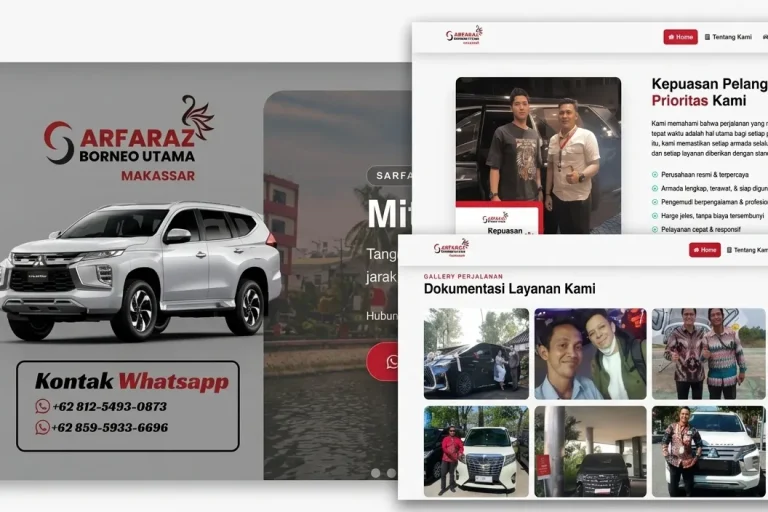
Tourism & Hospitality
Sarfaraz Rent Car Makassar
Sarfaraz Rental Mobil Makassar
A car rental company website presenting the fleet, rates and rental terms, with contact details customers can reach easily from any device.
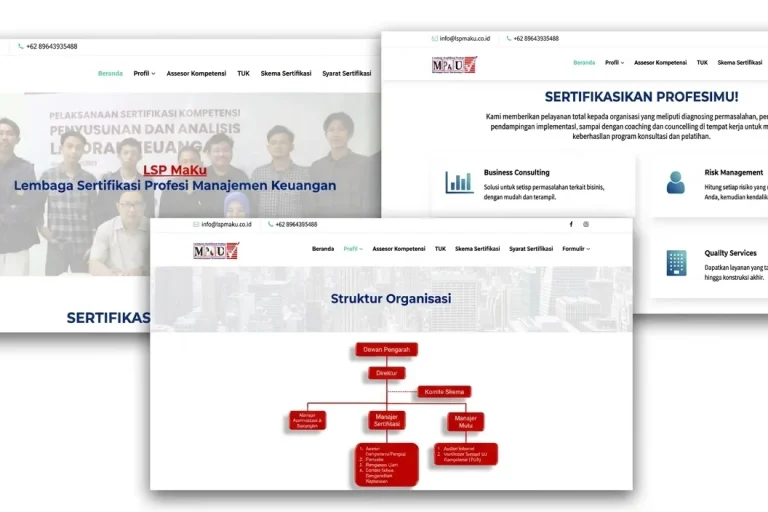
Professional Services
LSP MaKu
LSP MaKu
A professional certification body website covering certification schemes, schedules and participant guidance.
Keep reading
Related articles.

Web Development
Google Tag Manager for Small Business: Do You Need It, and How to Use It Safely
What Google Tag Manager does, whether a small business needs it or can use the Google tag alone, how to install and test it,…

Web Development
Your Connection Is Not Private: What It Means for Your Website and How to Fix It
What the 'Your connection is not private' warning means for a business website, how to tell a visitor-side error from a site fault, how…

Web Development
Booking System for Your Business: Off-the-Shelf, Plugin or Custom-Built?
Should your business use a SaaS booking tool, a WordPress plugin or a custom build? How to compare them, the one question that exposes…